
The layer list
The sidebar lists the layers of every window as a tree. This page shows how to read a row and how to find your way around a large tree.
Read a row
A row shows the layer’s class and, in smaller text after it, what Cutaway knows about it:
- the view the layer backs;
- the view controller whose root view it is;
- the member variable that holds it, such as
HomeViewController.titleLabel, so you can trace the layer back to your code.
The full text is in the row’s tooltip and in the header of the attributes when the row is selected.
The icon tells the kind of layer: its color is the kind (window, view controller, text, control, image, scrolling, bar, container, …) and its glyph the class. A filled icon is one of your app’s own classes; an outlined icon is a system class.
Dimmed rows are hidden or fully transparent; an eye marks a hidden one. Show them in the preview with View › Show Hidden Layers (⇧⌘H).
While you scroll, the ancestors of the row at the top stay pinned above it, so you always know where you are. The bottom of the list counts the layers and how many are hidden.
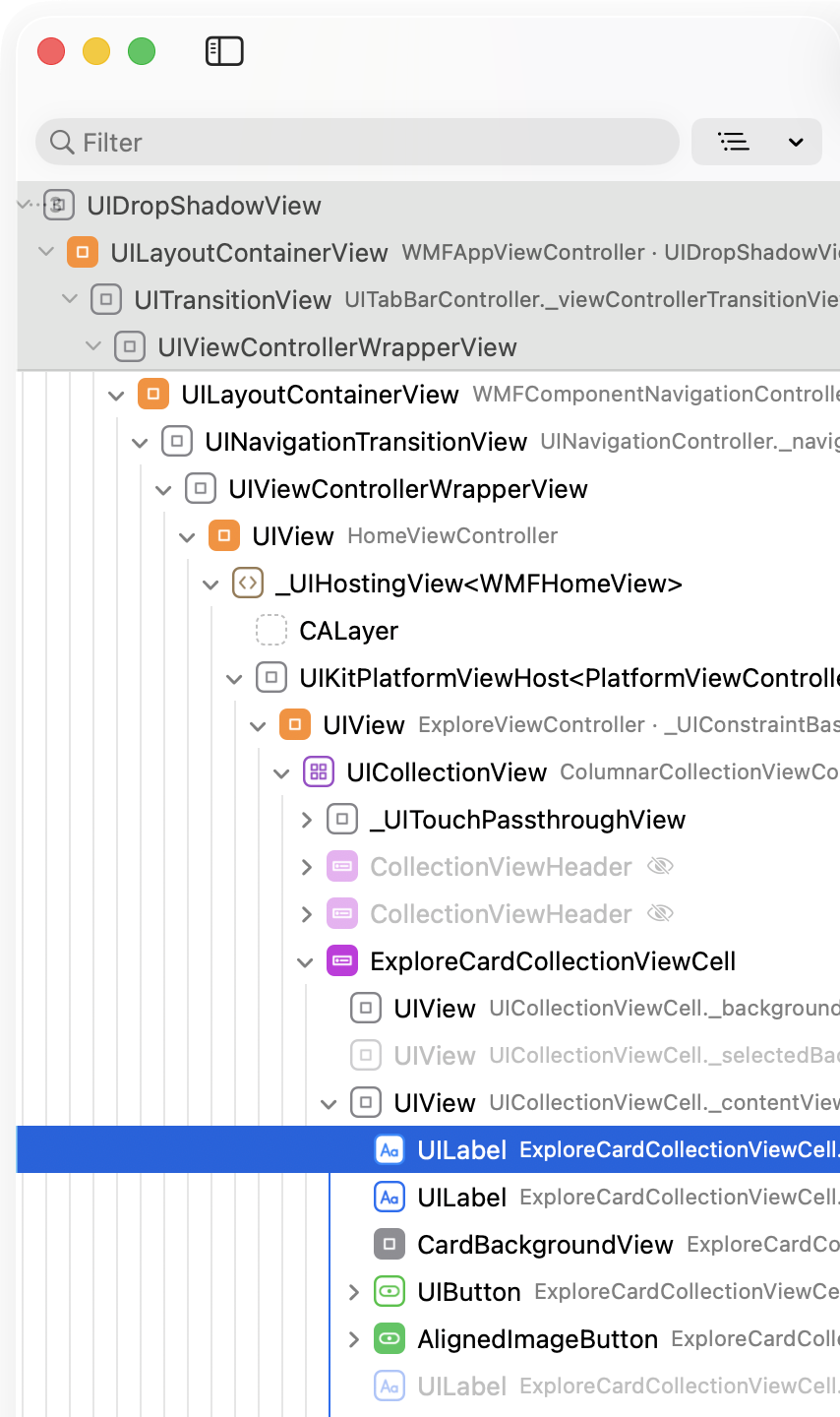
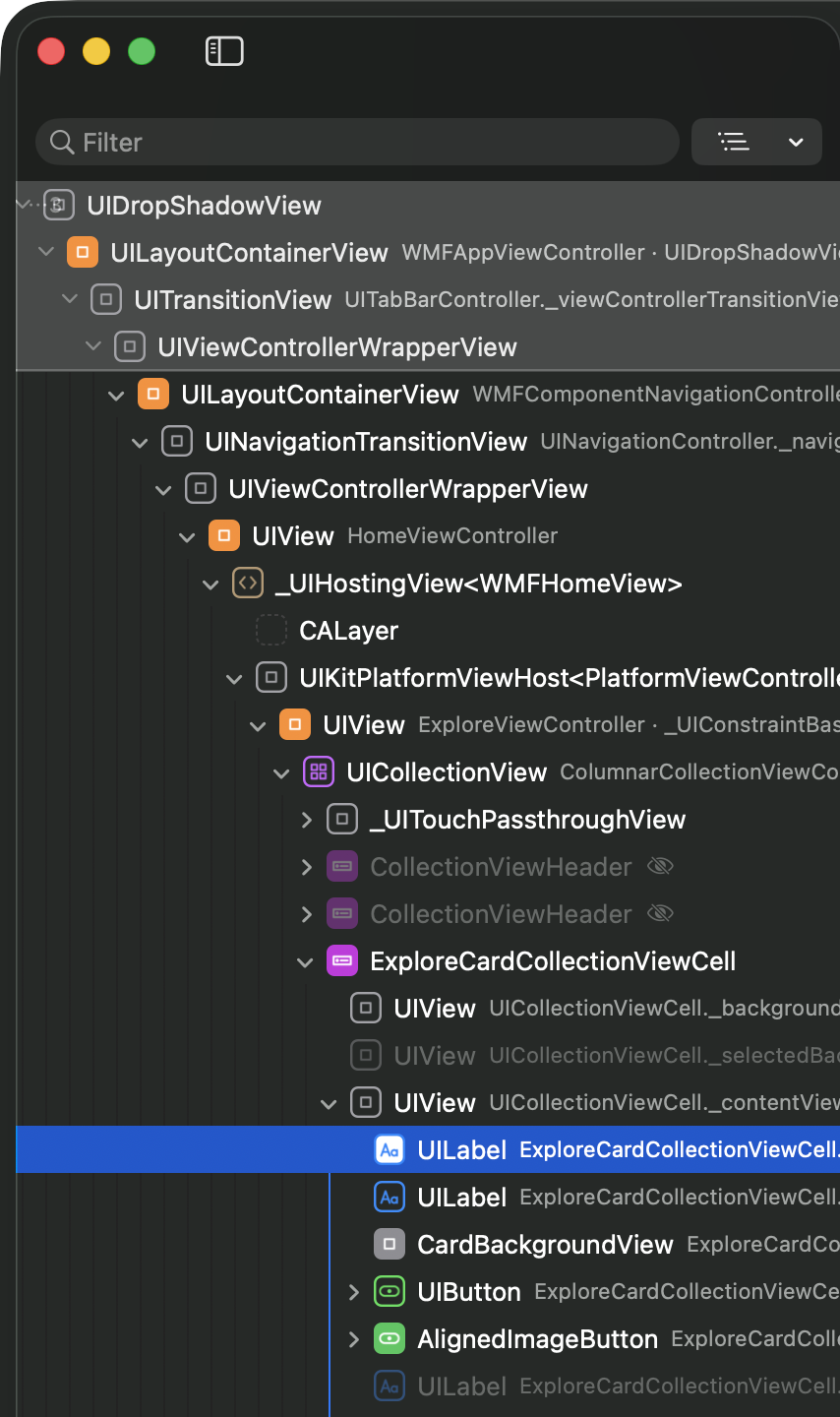
Pointing at a row highlights its layer in the preview, and pointing at a layer in the preview highlights its row.
Filter the list
Type in the Filter field at the top of the list (Edit › Find…, ⌘F). Rows whose title or class contains the text stay, with their ancestors so you can see where they are. Clear the field to see the whole tree again.
Focus on a subtree
To work on one part of the interface, select a layer and choose View › Focus on Selected Layer (⌥⌘↓), or Focus on Layer in the row’s context menu. The list and the preview then show only that layer and what is inside it.
The path above the list leads back out. View › Show All Layers (⌥⌘↑) shows everything again.
Expand and collapse
- Double-click a row to expand or collapse it. Double-clicking a layer in the preview does the same.
- The menu next to the filter field has Expand All, Collapse All and Expand to Level 1, 2, …. View › Expand All (⌥⌘→) and View › Collapse All (⌥⌘←) do the same from the keyboard.
When an app is first inspected, the tree opens down to the view controller on screen. An app can ask for some of its views to start collapsed, for example the inside of a complex control; you can still expand them yourself. Needs CutawayServer 1.2
In 3D, a collapsed row’s subtree folds back into one layer in the preview.
Move along the tree
- View › Select Parent Layer (⌘↑) selects the parent of the selected layer.
- View › Select First Child Layer (⌘↓) selects its first child.
The row’s context menu also has Refresh Subtree, Open in Xcode when your project has the class (see Source code), Copy LLDB Command, and the two screenshot exports (see Archives and export).
Virtual nodes Needs CutawayServer 1.2
An app can describe parts of the interface that a view draws itself, such as the bars of a chart, as virtual nodes (see Customizing what Cutaway shows). They appear in the list under the view that draws them, before its sublayers:
- the row’s title is the node’s name, with its type in the smaller text;
- the icon is a filled diamond in its own color;
- they can be selected, filtered, focused on and measured like any layer, and their attributes can be edited.
A virtual node has no image of its own: what it looks like is in the image of the layer that draws it. So the screenshot exports are not available for it, and the preview draws it as a dashed outline.
An app can also leave a view out of every image, for example a card number. Such a view is still listed, and the preview draws it hatched instead of with a screenshot.