
Constraints
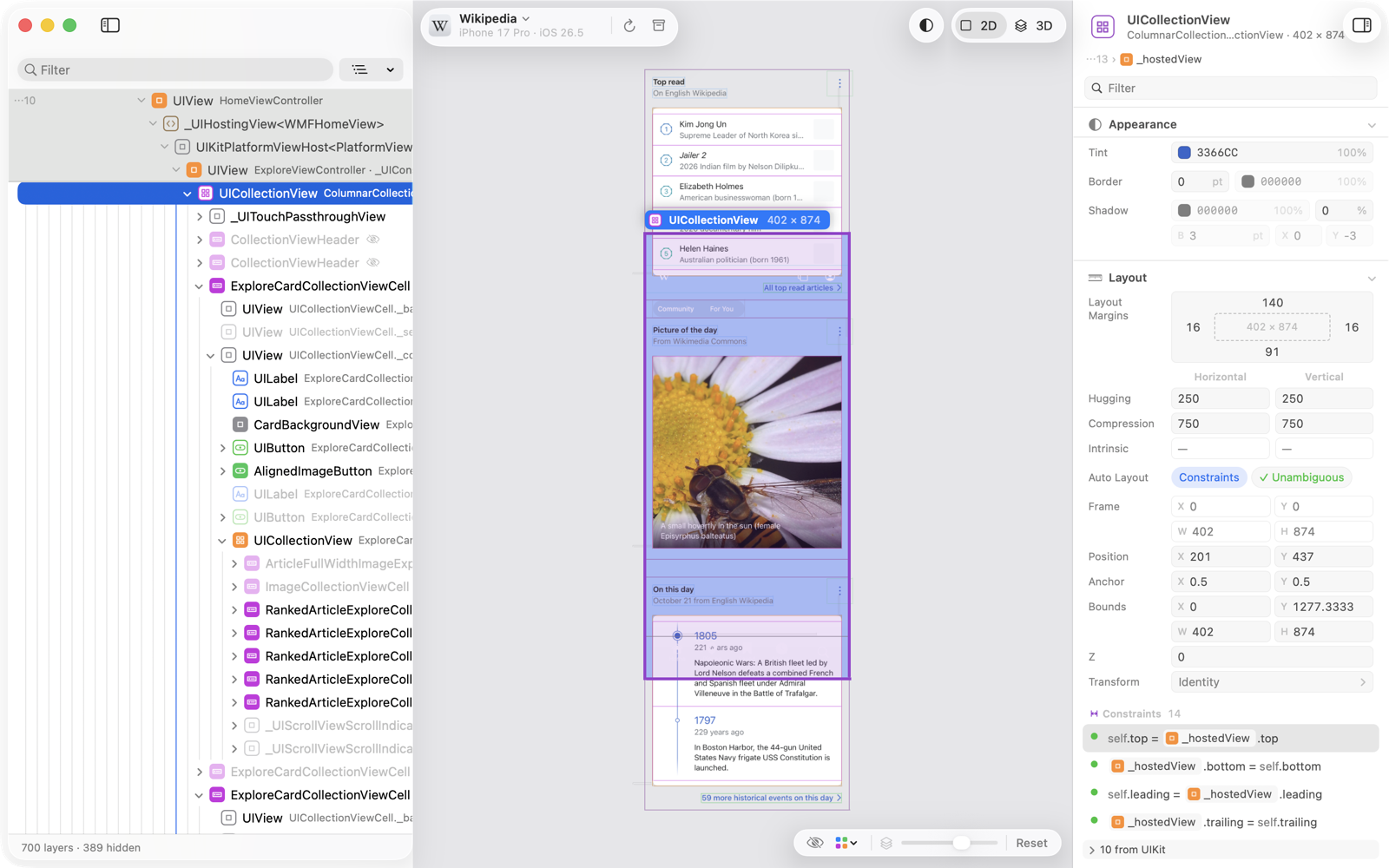
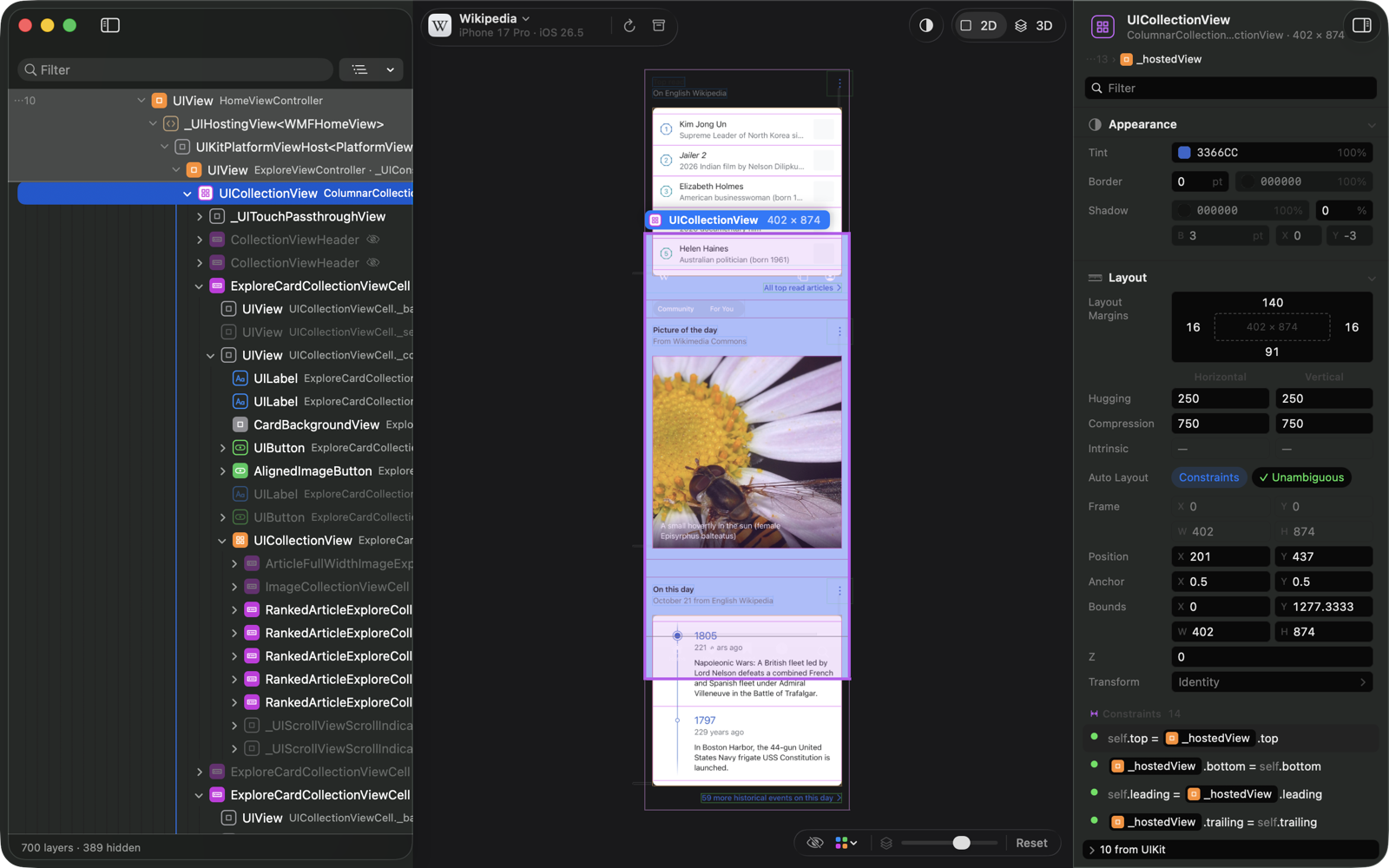
The Layout section of the attributes ends with the Auto Layout constraints that refer to the selected view. This page shows how to read them and follow them to the other end.
Read a constraint
Each constraint is written as the app reports it:
text
self.leading = Safe Area of UIView.leading + 16self is the selected view. The other end is a chip with its icon and name; it can be another view or a layout guide (Safe Area, Layout Margins, Readable Content, Keyboard). The priority is shown when it is below 1000, and the identifier when there is one.
- Constraints that are not in effect are dimmed and marked.
- The constraints UIKit generates itself are folded into one row, such as “4 from UIKit”.
Earlier in the Layout section, the Auto Layout row says whether the view’s layout is ambiguous, near its hugging, compression resistance and intrinsic size.
Find the other end
- Point at a constraint to mark its other end in the preview.
- Click the other end’s chip to select that view.
- View › Show Constraint Ends (⇧⌘K) marks the other end of every constraint at once. It is also in the borders menu below the preview, as Constraint Ends.