
Archives and export
Keep what you found: save the whole inspection to a file to look at later, share it with a colleague, or attach it to a bug report.
Save an archive
- While the app is connected, choose File › Save Archive… (⌘S), or the save button in the toolbar.
- Choose where to save the
.cutawayfile.
Cutaway collects the tree, the app’s icon, and the screenshots, attributes and constraints of every layer, hidden ones included, along with how the window looked: 2D or 3D, the camera, the expanded rows, the selection. The toolbar shows the progress; Cancel Saving stops it. When it is done, Saved · Show in Finder shows the file.
If the app goes to the background, the connection is lost or the app doesn’t send every layer, the archive isn’t saved and Cutaway says why. Save again when the app is back.
Layers the app leaves out of its images, and virtual nodes, have no screenshots in the archive either; they are drawn as in a live inspection.
Open an archive
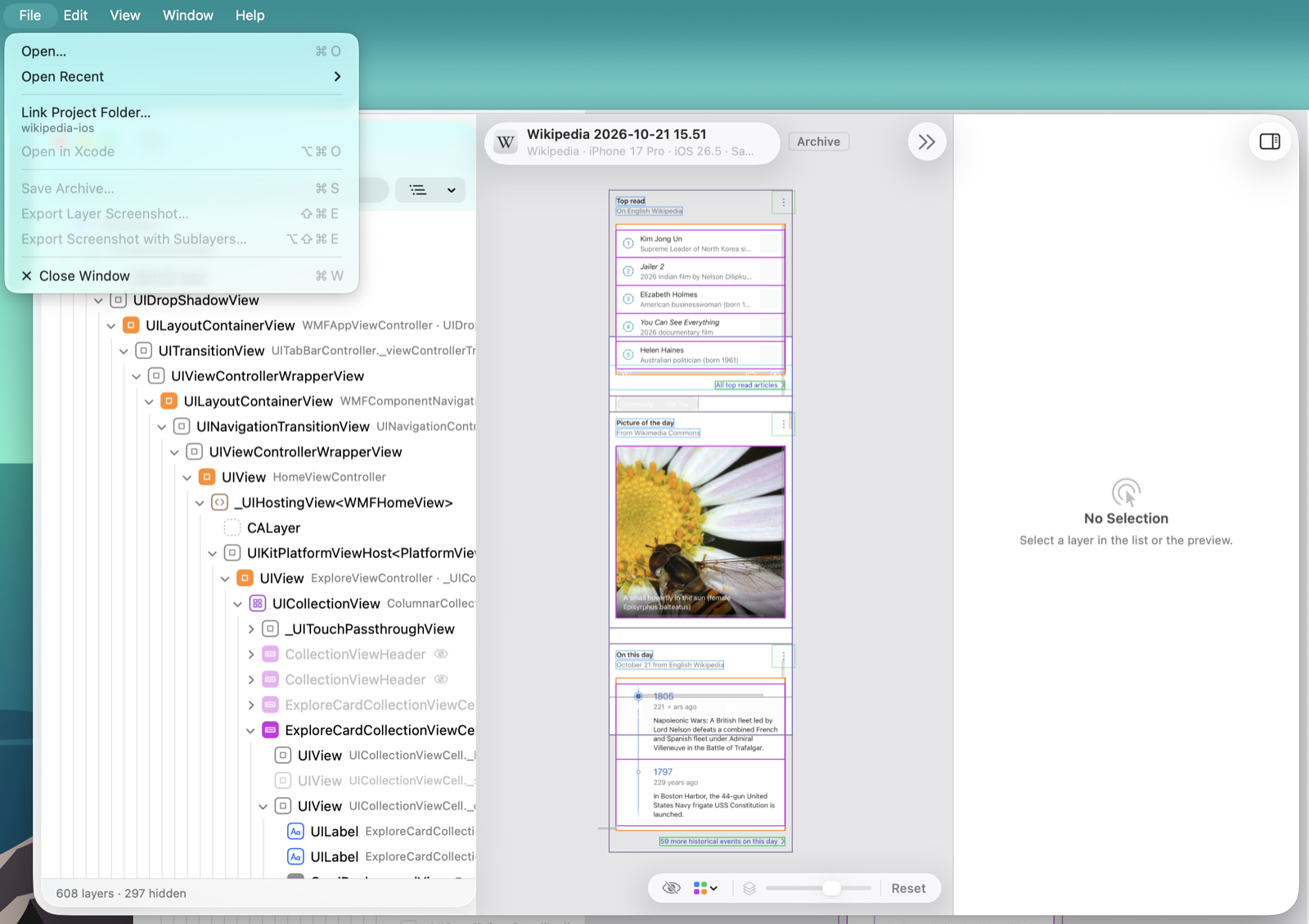
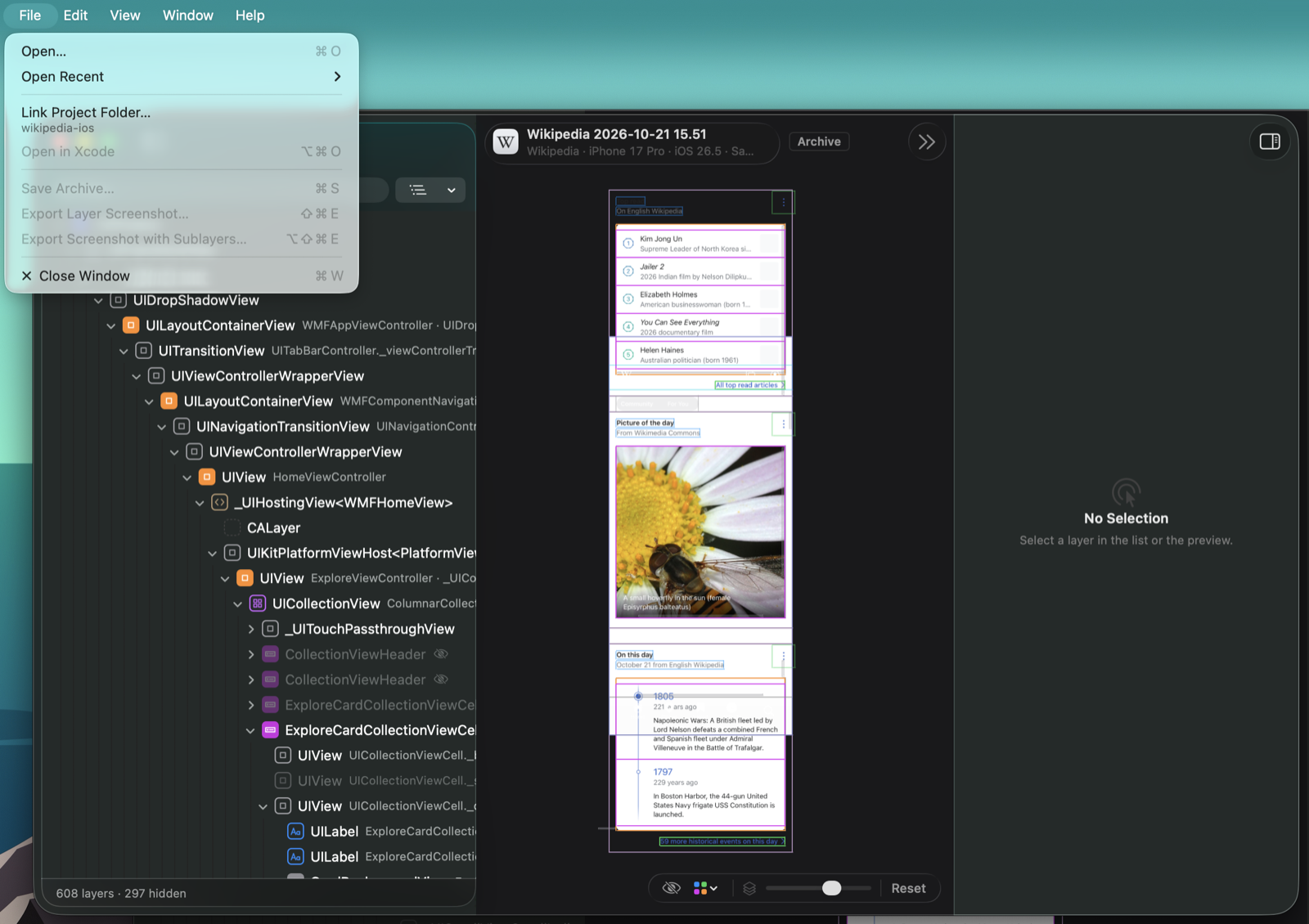
Open a .cutaway file with File › Open… (⌘O), File › Open Recent, from Finder, or by dropping it on Cutaway’s icon. You don’t need the device or the app.
The archive opens in its own window, marked Archive in the toolbar. The line under the window’s title gives the app, its device and the date the archive was saved. Everything works as in a live inspection except what needs the app (changing attributes or the environment, refreshing, saving): the layer list, the preview in 2D and 3D, measuring, the attributes and constraints, export, Open in Xcode with a linked project. An archive saved with environment overrides names them at the end of that line, for example “Dark · AX3”.
Several archives can be open at once, next to live inspections.
If an archive can’t be opened, Cutaway says why: the file is damaged or incomplete, isn’t a Cutaway archive, or was saved by a newer version of Cutaway. Update Cutaway to open the last kind.
The format is open and documented in the repository: Resources/ARCHIVE.md.
Export a screenshot
Select a layer, then:
- File › Export Layer Screenshot… (⇧⌘E) saves the layer alone;
- File › Export Screenshot with Sublayers… (⌥⇧⌘E) saves it with everything inside it.
Both are also in the context menu of the row and of the layer in the preview. The image is a PNG at the device’s scale, with transparency, and without the layer’s own transform or opacity, so you get the layer as it is drawn, not as it is placed.
Exports work in archives too, when the archive has that image. They are not available for virtual nodes, which have no image of their own, or for views the app leaves out of its images.