
Environment
See your interface in dark mode, at a larger text size or right to left, without changing the Simulator’s or the device’s settings.
Override the environment
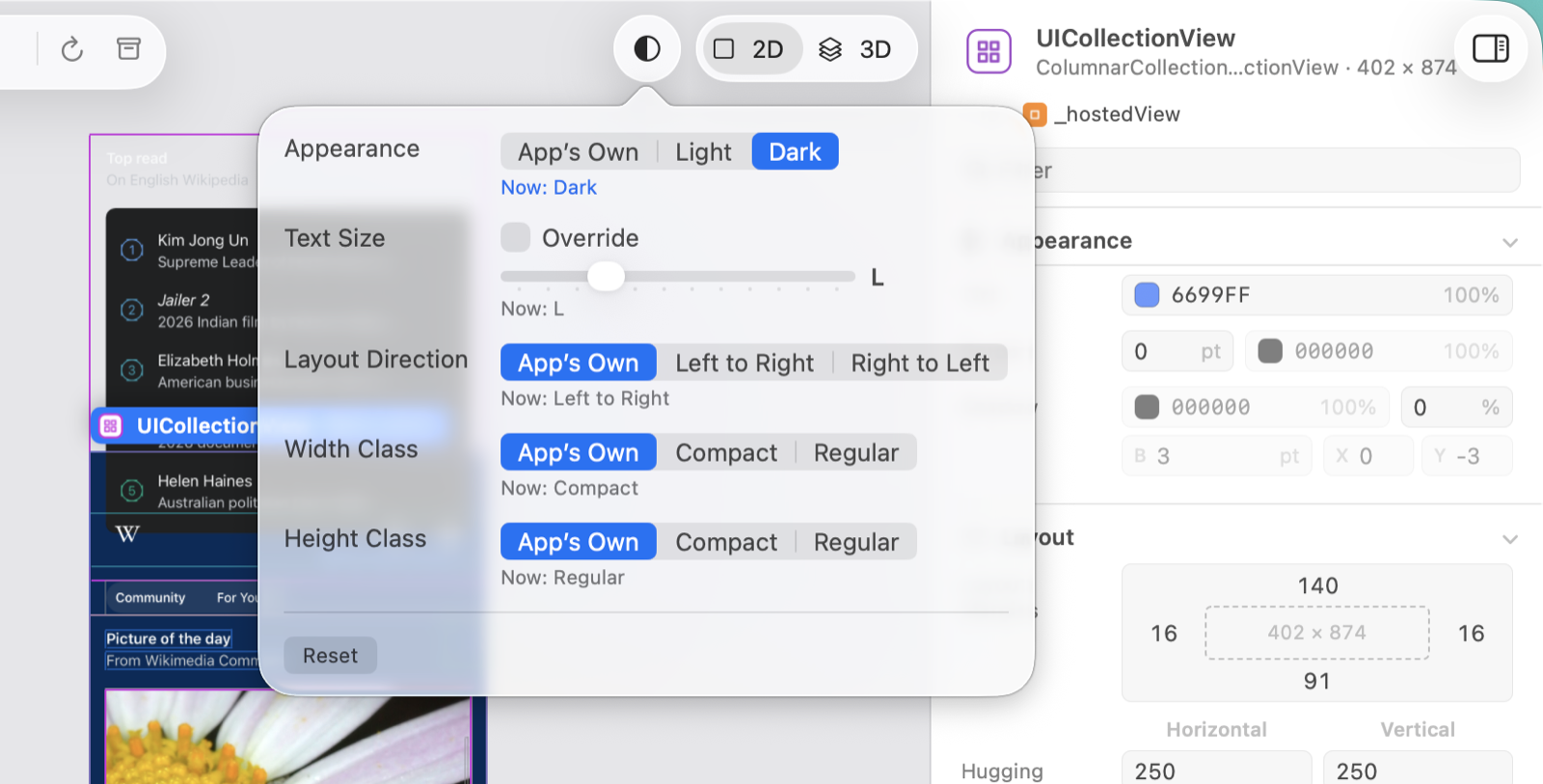
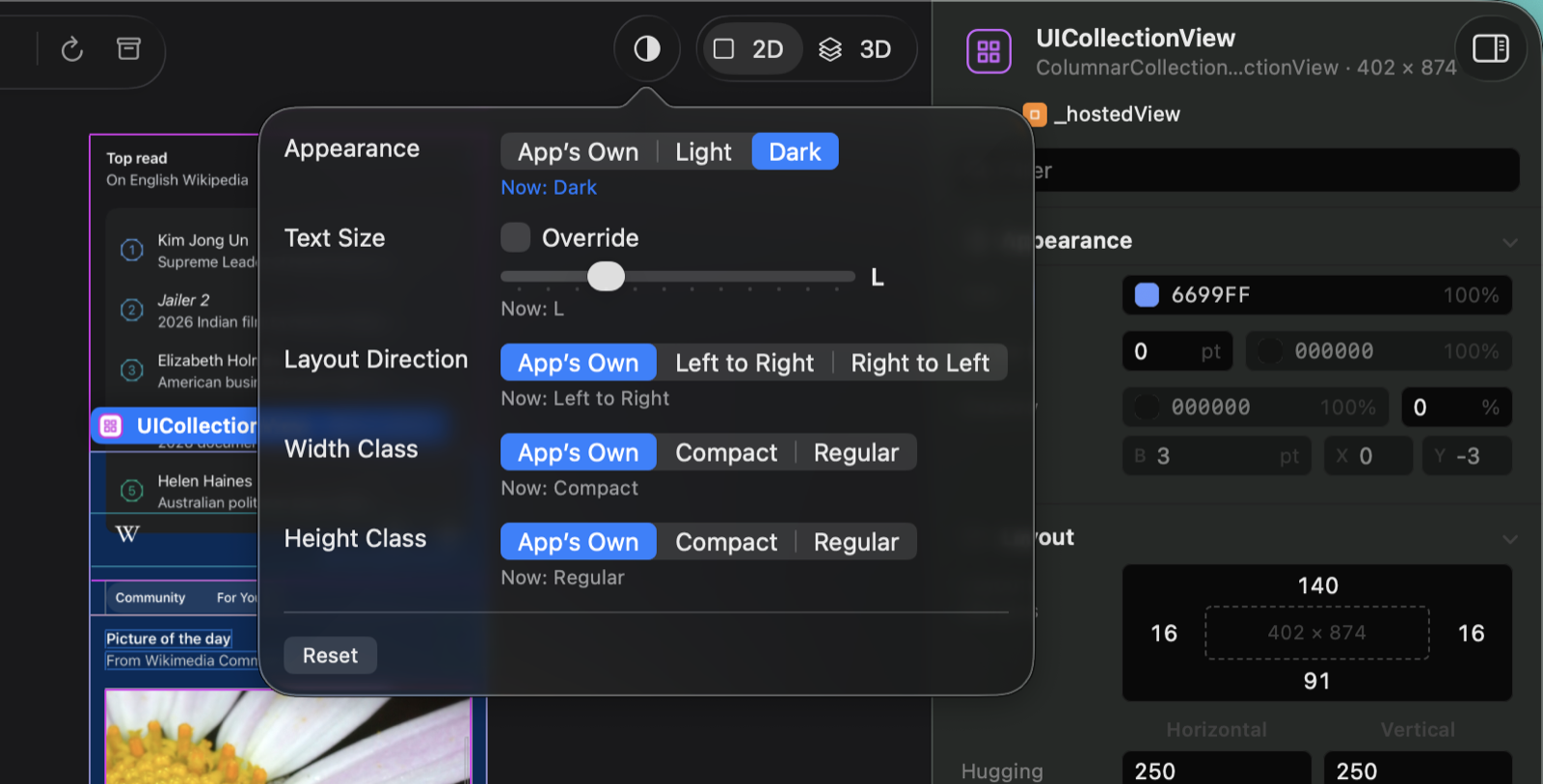
- Click Environment in the toolbar, left of 2D and 3D.
- Choose a value. Appearance, layout direction and the size classes are segmented controls:
| Setting | Values |
|---|---|
| Appearance | App’s Own, Light, Dark |
| Text Size | Tick Override, then choose one of twelve sizes from XS to AX5 on the slider; untick it for the app’s own |
| Layout Direction | App’s Own, Left to Right, Right to Left |
| Width Class | App’s Own, Compact, Regular |
| Height Class | App’s Own, Compact, Regular |
Under each setting, “Now: …” says the value the app has at the moment. The Environment button is tinted while anything is overridden. Reset puts every setting back to the app’s own.
The same settings are in View › Environment (the size classes under Size Classes), and View › Environment › Toggle Light and Dark (⇧⌘A) switches the appearance from the keyboard.
The popover shows only what the app can override. With an app whose server is older than 1.2 there is no Environment button.
What happens after a change
Cutaway waits half a second for the app to redraw, then loads the whole tree and every screenshot again, keeping your selection, expansion, focus and camera. The text size is sent when you let go of the slider; its name follows while you drag.
Some apps take longer than that to change their look. If the preview still shows the old appearance, press View › Refresh (⌘R).
If the app can’t make a change, the popover says why, for example “The app can’t override that combination, so nothing was changed.”, and the setting goes back.
Overrides and the connection
- The app’s server undoes the overrides when the connection closes, so the app doesn’t keep them after you stop inspecting it.
- After Cutaway reconnects, the settings show what the app has; Cutaway doesn’t apply your overrides again by itself.
- An archive saved with overrides keeps them: the line under the archive window’s title names them, for example “Dark · AX3”. See Archives and export.