
Attributes
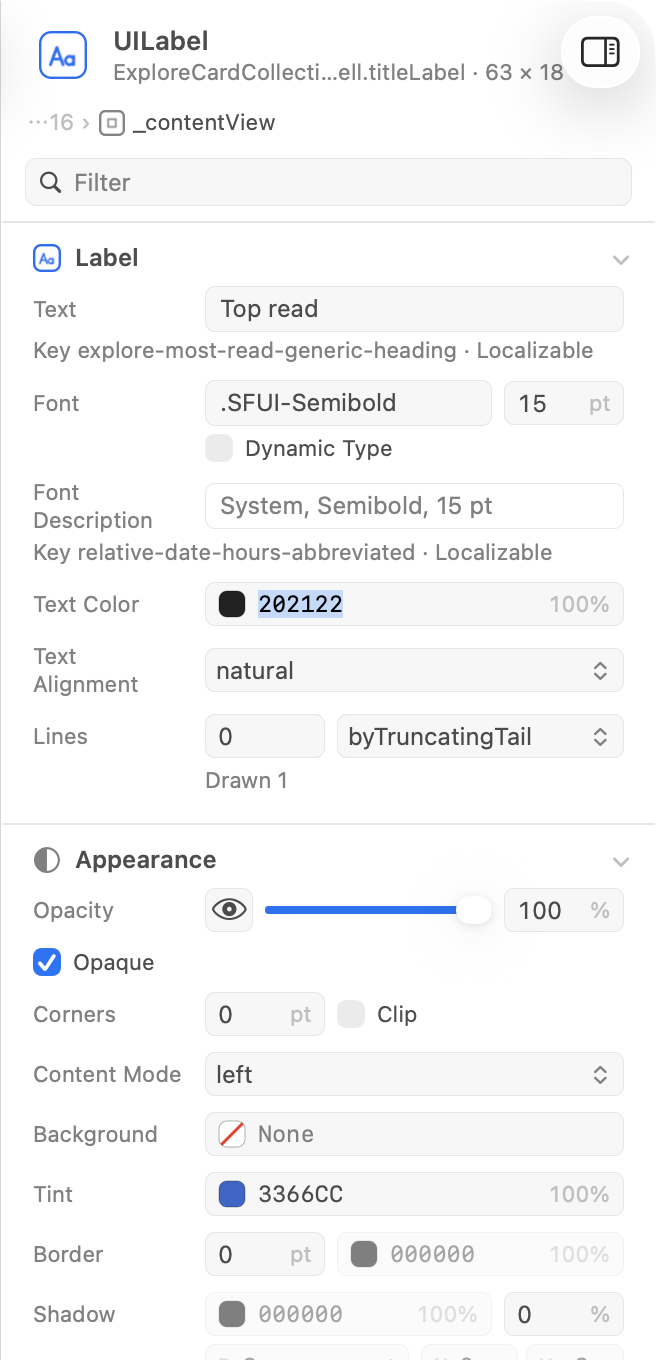
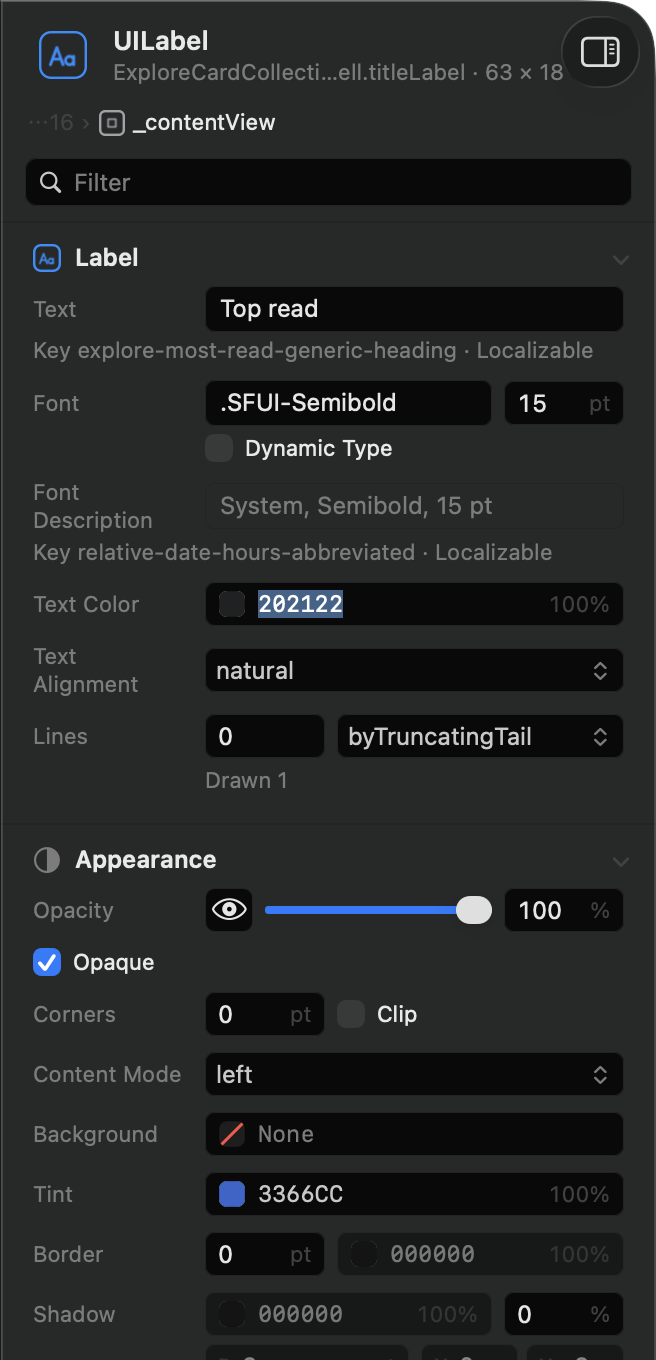
The inspector on the right shows the selected layer and its view. This page shows how to find an attribute and change it while the app runs.
Show or hide the inspector with View › Show Inspector (⌥⌘I).
Read the header
At the top are the layer’s name and icon, and what holds it: the member variable that references it, or the view controller whose root view it is. Under them, the layer’s nearest ancestors lead up the tree; click one to select it. View › Select Parent Layer (⌘↑) and View › Select First Child Layer (⌘↓) move along the tree from the keyboard.
Find an attribute
The attributes are in sections by purpose:
| Section | What’s in it |
|---|---|
| Content | What is particular to the class: a label’s text and font, an image view’s image, a collection view’s counts |
| App 1.2 | Groups of attributes your app adds itself (see Customizing what Cutaway shows) |
| Appearance | Opacity, background, tint, border, shadow, corners |
| Layout | Frame, position, bounds, transform, margins, hugging and compression, and the constraints |
| Behavior | Interaction, state, scrolling |
| Accessibility 1.2 | What the view gives assistive technologies: whether it is an accessibility element, its label, hint, value, identifier and traits |
| Object | The classes, the addresses (with Copy Address) and the owners |
The sections marked 1.2 appear with apps that include CutawayServer 1.2 or later.
Attributes that belong together share one row, such as Frame, Border, Shadow and Corners. Cutaway has no list of its own: what appears is what CutawayServer sends, so the attributes you see depend on the server in your app.
- Filter by title or ID with the field above the list.
- Fold a section by clicking its header; ⌥-click a header to fold or unfold them all. The header of the section at the top stays in view while you scroll.
A value that has no effect right now, such as a border color while the border width is 0, is faded; its tooltip says why.
Change a value
Attributes the app marks editable have controls: a text field, a number field, a checkbox, a color field with its hex value and opacity, a pop-up or segmented control for a list of options, and one field per component for points, sizes, rectangles, insets and transforms. Lengths are in points; proportions such as opacity are shown and typed as percentages, and opacity has a slider too.
- Select the layer.
- Change the value and press Return, or leave the field.
The change is applied in the running app at once. While you drag the opacity slider or use the color picker, it is sent continuously. The app answers with the layer’s attributes, so a value that changes with another, such as a layer’s opacity with its view’s alpha, is updated too. Then Cutaway refreshes the screenshots of the layers the change could have affected.
Edit › Undo (⌘Z) and Edit › Redo (⇧⌘Z) work for as long as the inspection lasts.
When a value is refused
- Outside the limits the app reports. The value is not sent. The field stays open with a red outline and the reason under it, such as “Must be between 0 and 1.” Press Esc or leave the field to put the old value back.
- Rejected by the app. The reason is shown in the row and the previous value comes back.
Read a color Needs CutawayServer 1.2
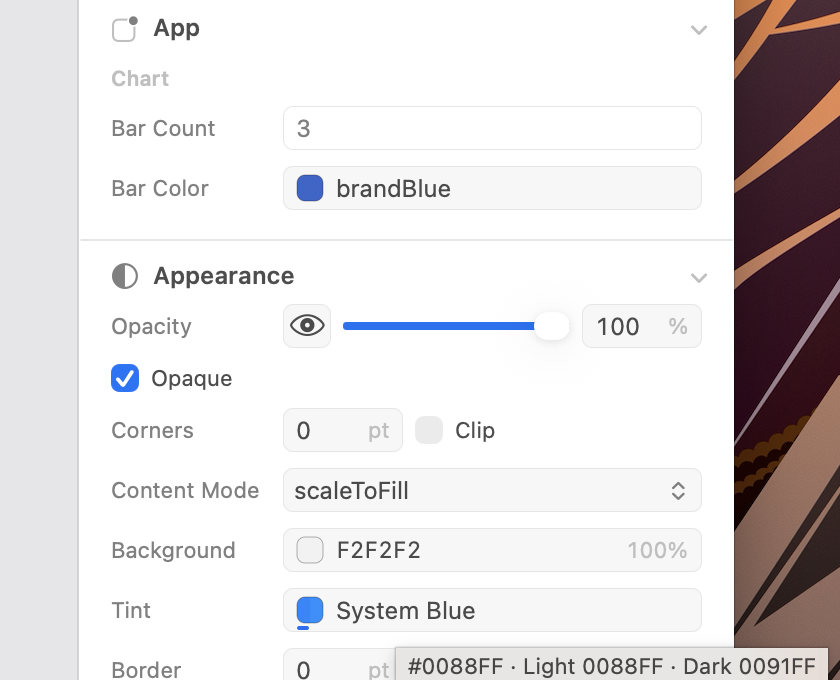
A color shows its swatch and a name when there is one, otherwise its hex value and opacity. The name is the first that applies:
- a name your app registered for the color (see Customizing what Cutaway shows);
- the color set in your project’s asset catalog that has the same value, when a project folder is linked;
- the system color it is, such as System Blue.
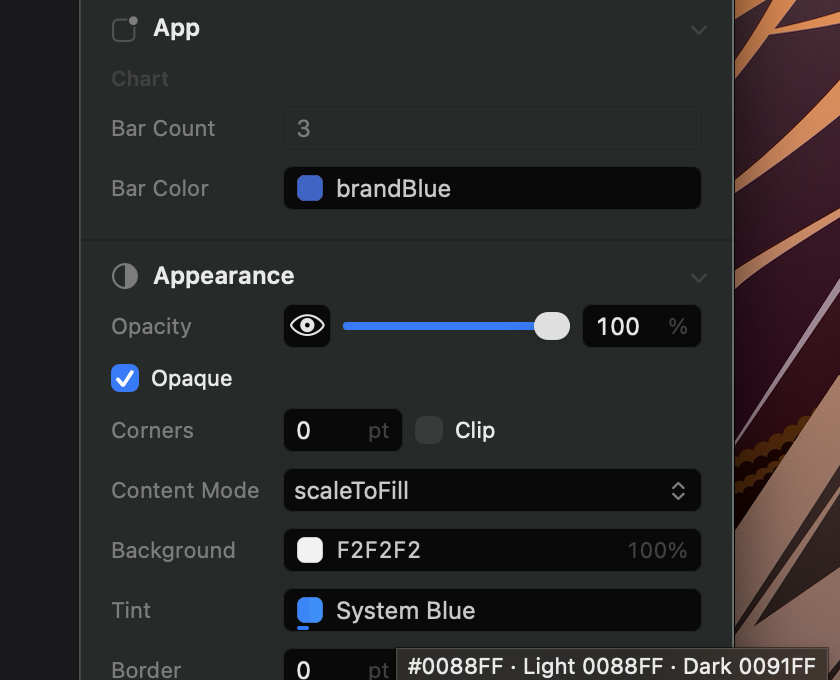
The tooltip gives the hex value and the other names.
A dynamic color, one that changes between light and dark, has a swatch split in two: light on the left, dark on the right, with a line under the half in effect now. The tooltip reads, for example, “Light 007AFF · Dark 0A84FF”. Editing changes the value in effect now.
Follow a reference Needs CutawayServer 1.2
Some attributes point at other layers, such as a stack view’s arranged subviews. Each one is a chip with its icon and class. Point at a chip to highlight that layer in the preview; click it to select it. A grey chip is an object that isn’t in the layer tree. More than six are folded into “n More”.