
The preview
The preview draws every visible layer at its place on the screen, with its screenshot. This page shows how to look at it from every side.
The tree arrives first and the preview draws the layers as outlines; each screenshot appears as it arrives. The progress is in the toolbar.
Switch between 2D and 3D
Choose 2D or 3D in the toolbar, or press ⌘1 and ⌘2 (View › 2D, View › 3D).
- 2D shows the layers flat, as on the device’s screen.
- 3D spreads them apart along their depth, so you can see what sits behind what. Collapsing a row in the layer list folds its subtree back into one layer.
Every position, size, rotation and scale is drawn as on the device, including 3D transforms.
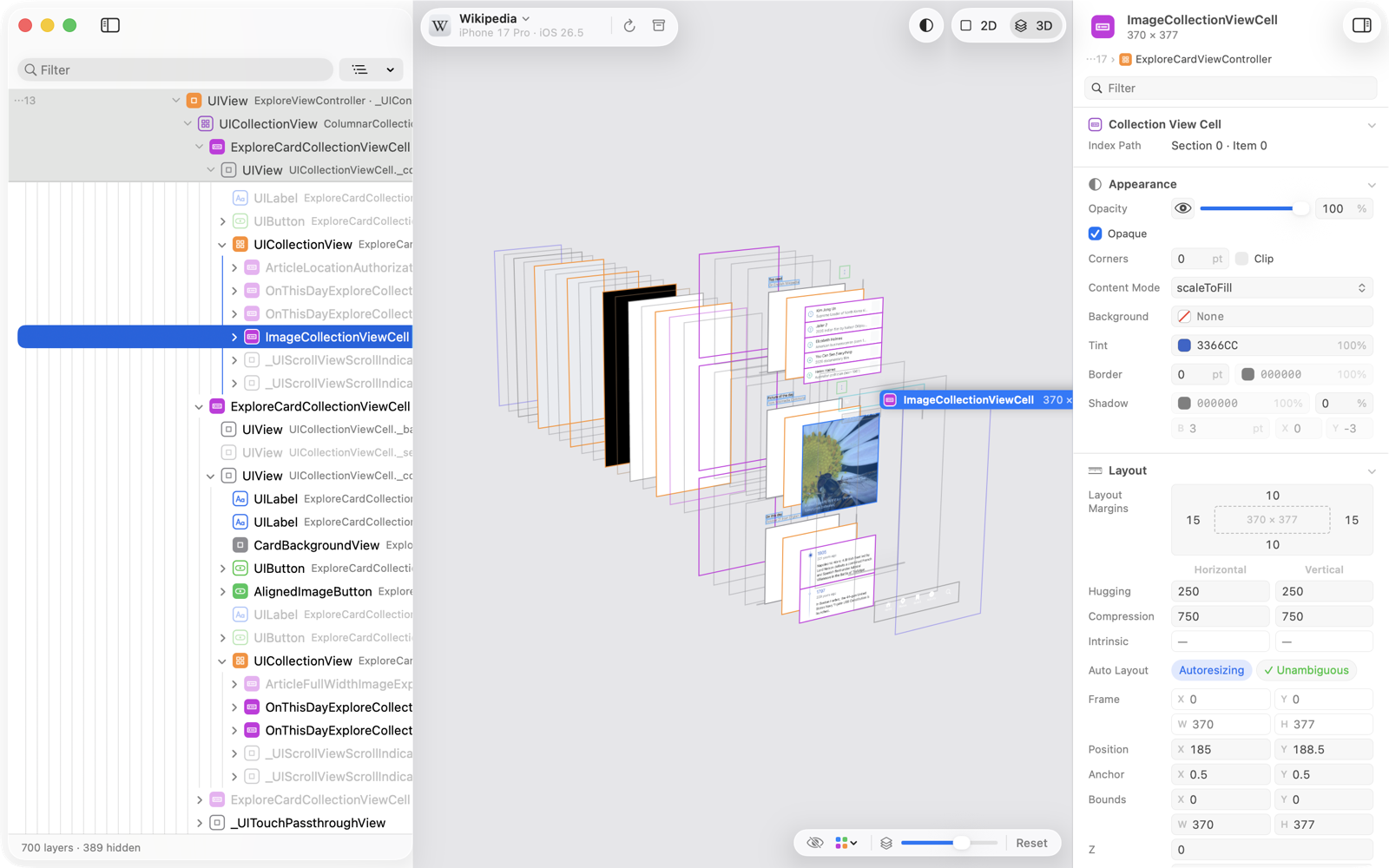
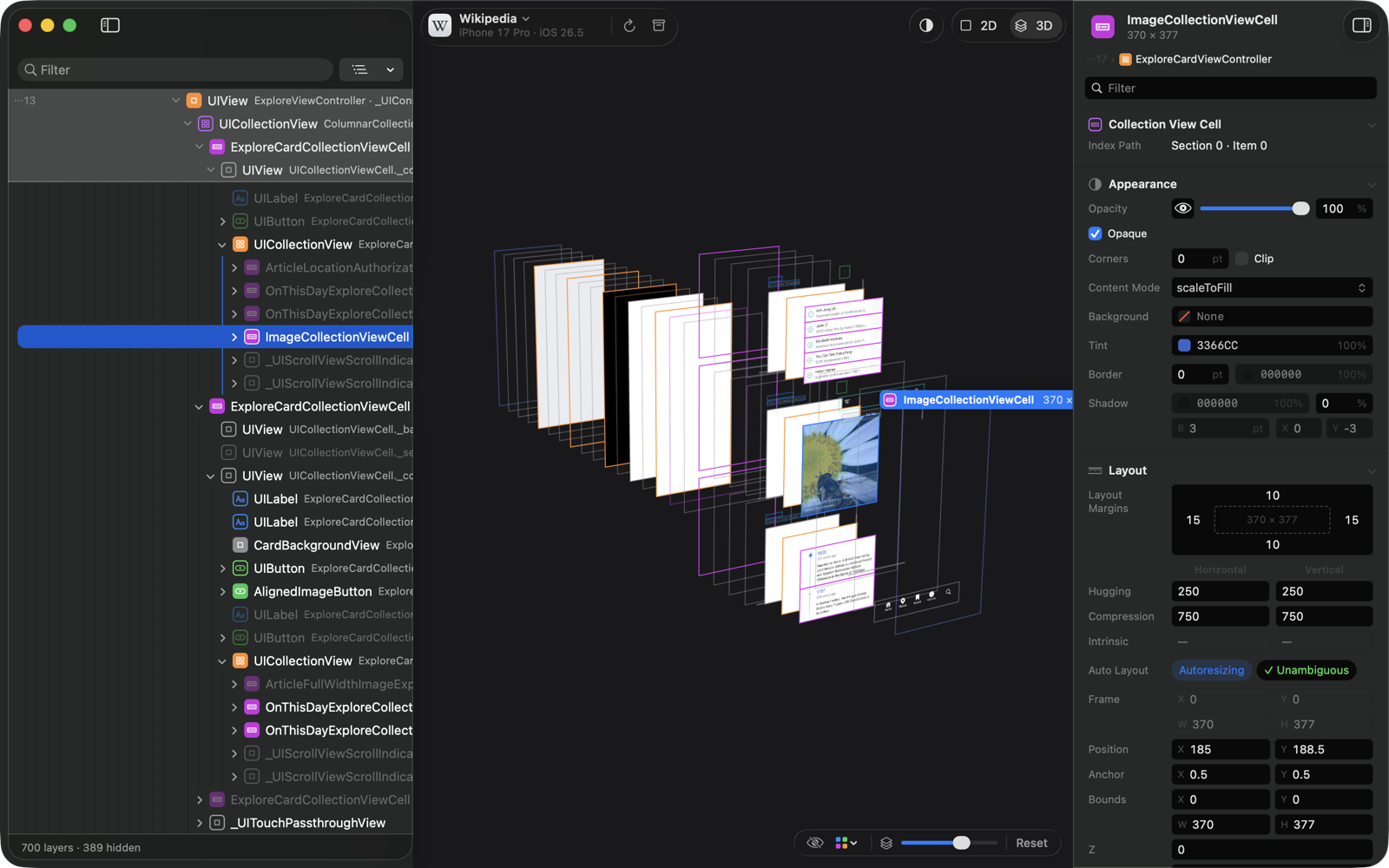
Move the camera
| To | Do this |
|---|---|
| Turn the layers (3D) | Drag in the preview |
| Pan | Scroll with two fingers or the mouse wheel; in 2D, you can also drag |
| Zoom | Pinch, or hold ⌘ and scroll; the zoom centers on the pointer |
| Zoom in steps | View › Zoom In (⌘=) and View › Zoom Out (⌘-) |
| Go back to the start | View › Reset View (⌘0), or Reset below the preview |
Change the layer spacing
In 3D, the slider below the preview sets the space between layers, from 0 to 200 points. A larger spacing separates crowded layers; 0 puts them back together while keeping the 3D view.
Show hidden layers
View › Show Hidden Layers (⇧⌘H), or the eye below the preview, also draws the layers that are hidden or fully transparent, in their own style, so you can find a view that isn’t showing.
Outline the layers
The borders menu below the preview outlines the layers:
- Off, Plain (one color) or By Kind (in the colors of the list’s icons);
- Only the App’s Own Classes, to outline only your classes;
- Constraint Ends, to mark the other end of every constraint of the selected view (see Constraints).
View › Borders › Show Borders (⇧⌘B) turns the borders off and back on to the last style.
Virtual nodes are outlined with a dashed line, and views the app leaves out of its images are hatched. Needs CutawayServer 1.2
Select a layer
- Click a layer to select it; the list and the attributes follow. A tag beside it shows its name and size.
- Point at a layer to highlight it, and its row in the list.
- Double-click a layer to expand or collapse its row.
Some content is blank in the preview: blurs, video and Metal are drawn by the system outside the app, so they are not in the screenshots. See Limitations.
Refresh
The preview shows the app as it was when Cutaway asked. To ask again:
- View › Refresh (⌘R), or Refresh in the toolbar, loads the whole tree, every screenshot and the selected layer’s attributes again. Expanded rows, the selection and the camera stay as they were.
- View › Refresh Selected Subtree (⇧⌘R), or Refresh Subtree in a row’s context menu, loads only that layer and its descendants, with their screenshots.
An archive can’t be refreshed: it keeps what the app looked like when it was saved.