
Measuring
Measure the space between two layers without a ruler: select one, hold ⌥ and point at the other.
Measure in the preview
- Select a layer: click it in the preview or in the layer list.
- Hold ⌥ and point at another layer in the preview.
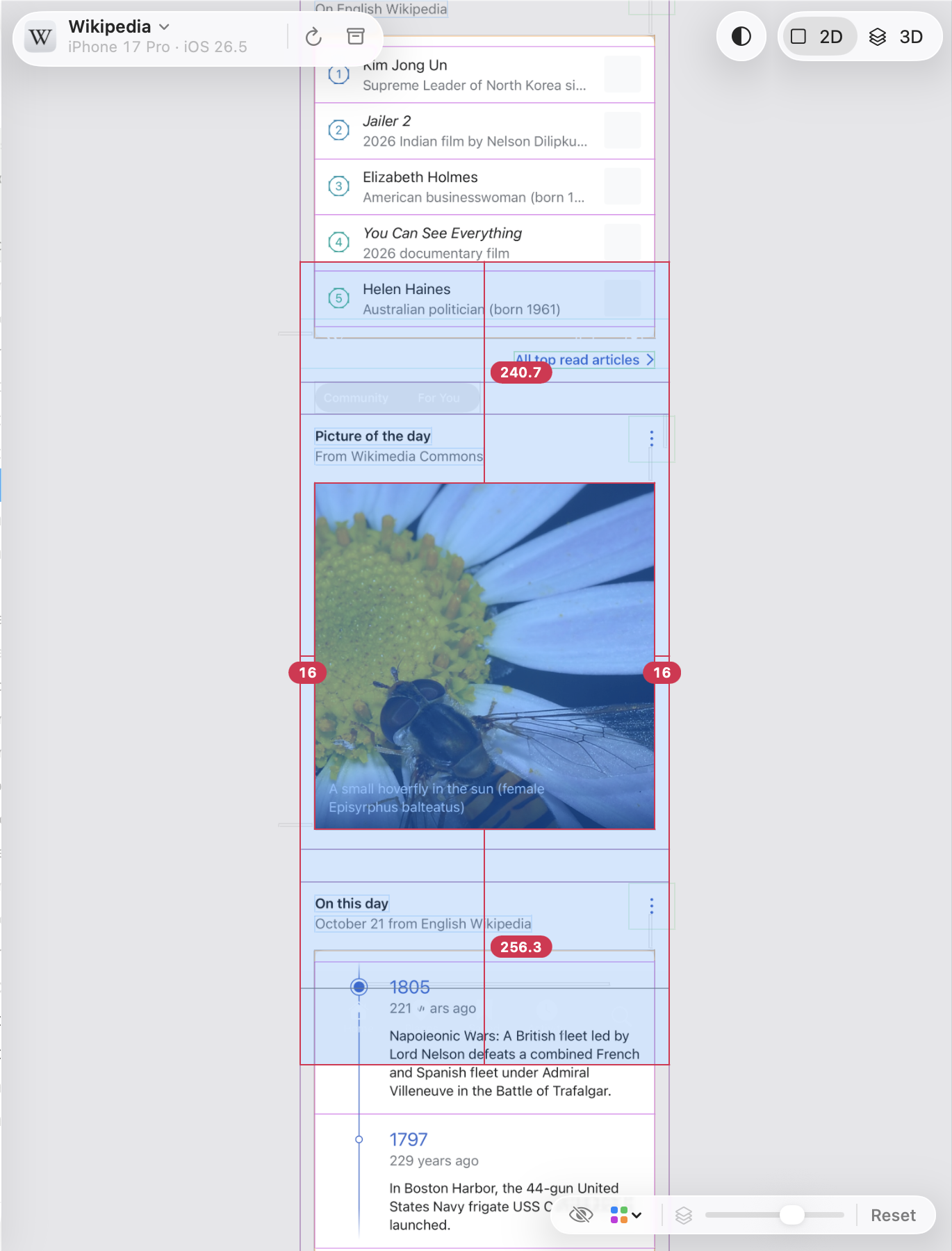
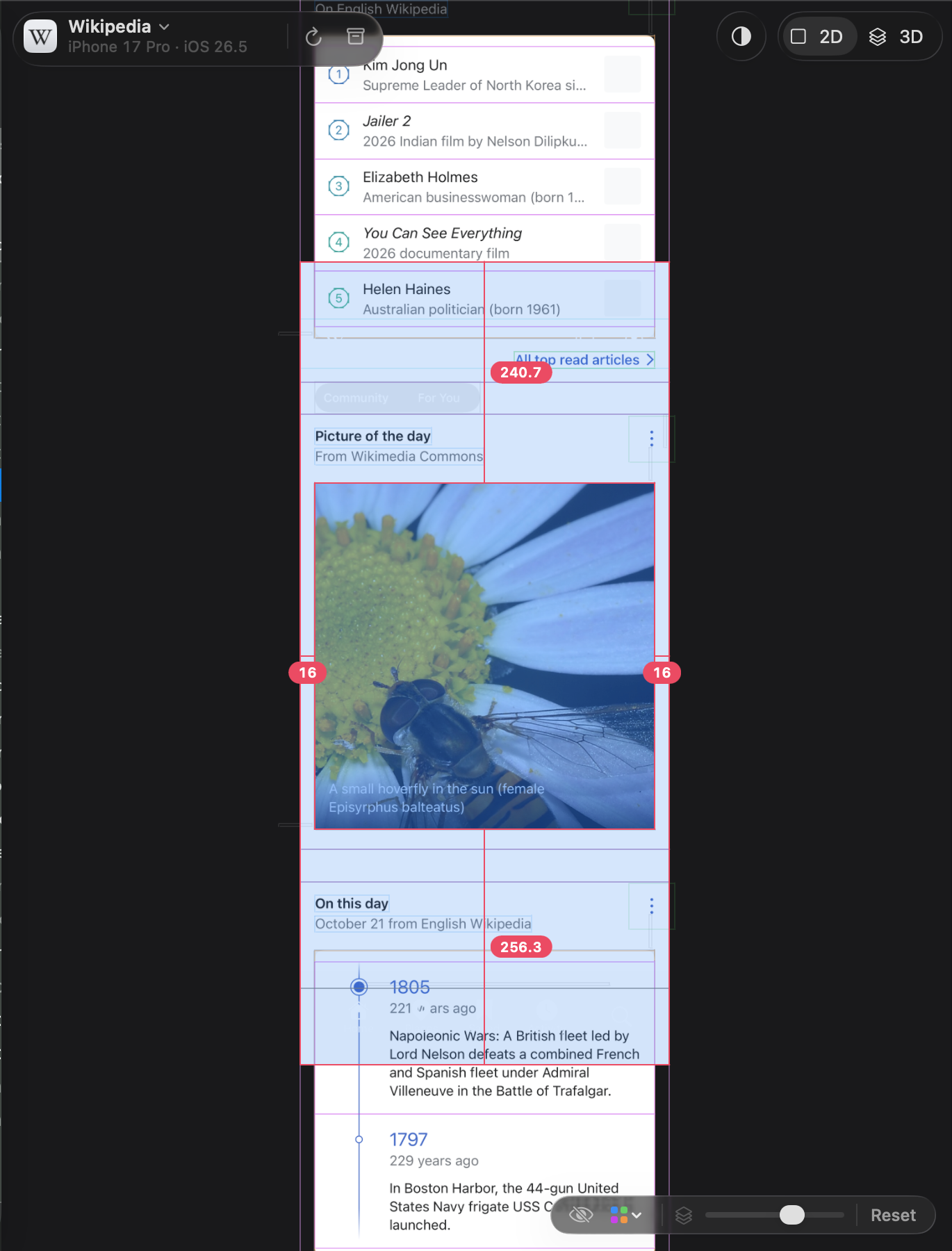
Cutaway outlines both layers and draws the distances between them, each with its value in points:
- where the two are apart, horizontally or vertically, the gap between their facing edges;
- where they overlap or one is inside the other, the distance between edges on the same side: left to left, right to right, top to top, bottom to bottom.
Distances of 0 are left out. Zooming and panning redraw the measurement; the values stay the same.
Let go of ⌥ and the measurement disappears.
Measure in 3D
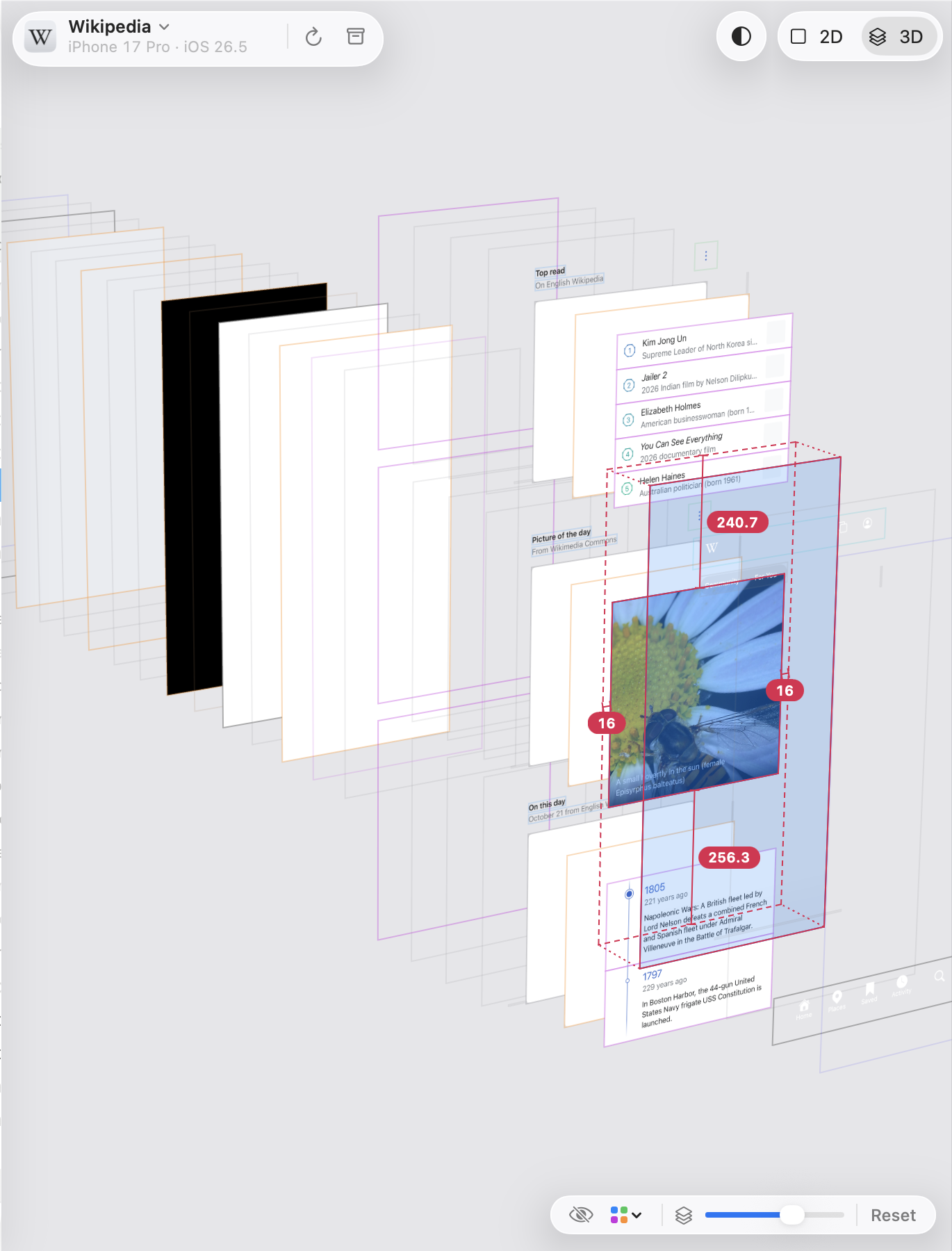
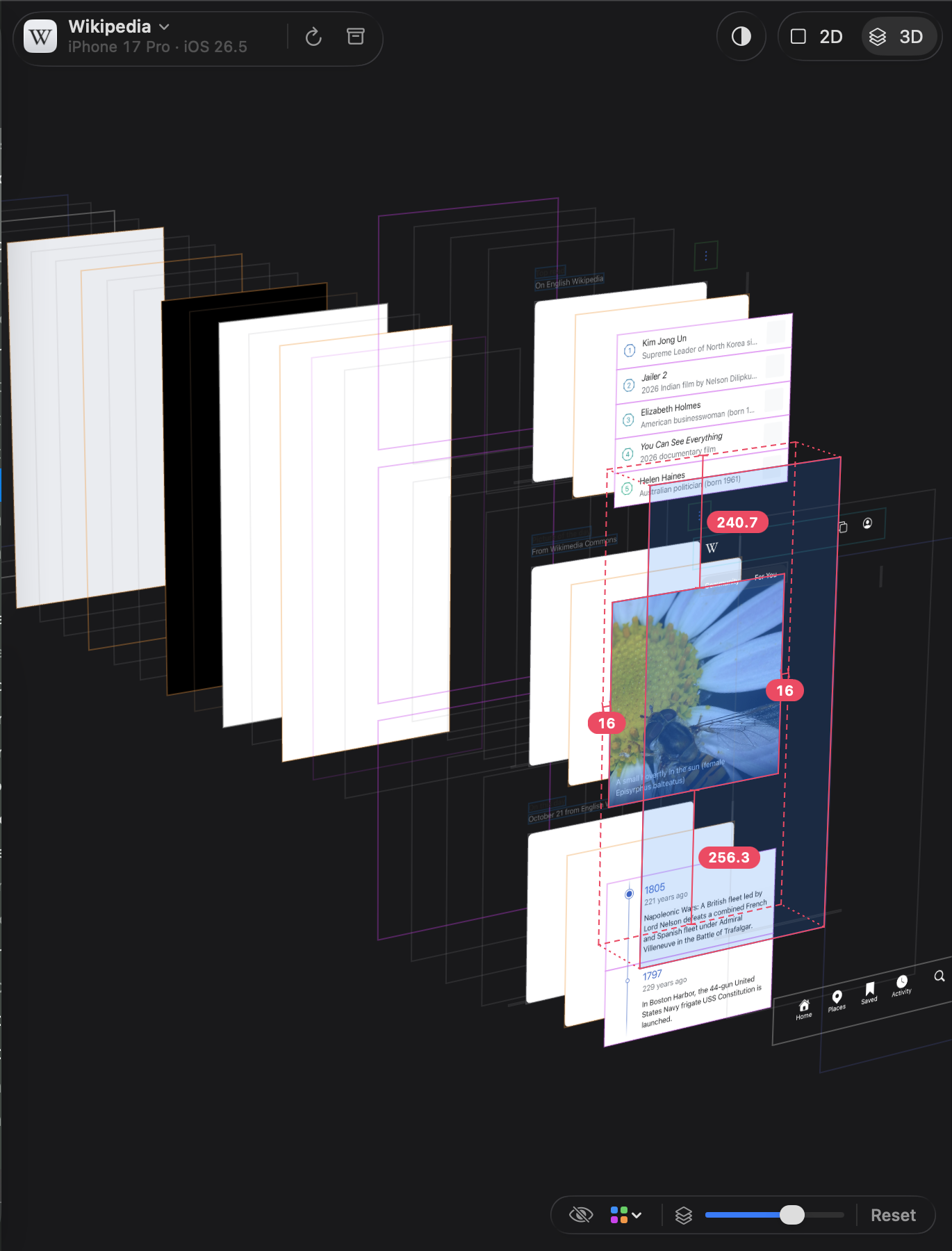
Measuring works the same way in 3D, with the same values as in 2D. The distances are drawn on the selected layer’s level and the other layer’s outline on its own level. When the two are on different levels, a dashed copy of the other outline appears on the selected layer’s level, joined to it at the corners, so you can see which edges are compared. Turn the preview, zoom or change the layer spacing, and the measurement follows.
Measure from the layer list
Some layers are hard to point at in the preview: a container covered by its subviews, a layer hidden behind others in 3D, a very small one. Point at its row instead:
- Select a layer.
- Hold ⌥ and point at another row in the layer list, including the pinned rows at the top.
The preview draws the distances between the selected layer and that row’s layer. Nothing is drawn when you point at the selected row itself, or at a layer that isn’t drawn in the preview (collapsed inside another, hidden, or outside the focused subtree). The measurement disappears when you let go of ⌥ or the pointer leaves the list.
⌥-clicking a row’s disclosure triangle still expands or collapses it with everything inside.