
Source code
Go from what you see in Cutaway to your code: open a class in Xcode, see which color set or string key a value comes from, and reach the same object in the debugger.
Opening in Xcode and naming colors and texts need a linked project folder. Copying LLDB commands doesn’t.
Link a project folder
- Inspect your app, or open one of its archives.
- Choose File › Link Project Folder… and choose the folder of your Xcode project.
Cutaway remembers the folder for the app’s bundle ID, for live inspections and for that app’s archives. Change or remove it in Settings › Projects (see Settings).
Cutaway only reads the folder: Swift and Objective-C sources, asset catalogs and string catalogs. It never writes into it and sends it nowhere. It reads in the background and skips hidden folders, build products and third-party code (DerivedData, build, .build, SourcePackages, Pods, Carthage, node_modules), and .framework, .xcframework and .bundle folders. It also skips source files larger than 4 MB and string tables larger than 64 MB, and stops after 200,000 files. When you open an inspector or refresh with ⌘R, it reads again the files that changed.
If the folder has moved or its disk isn’t connected, Cutaway looks for it, and if it can’t find it, asks the first time it needs it: Choose Again… or Later.
Open a class in Xcode
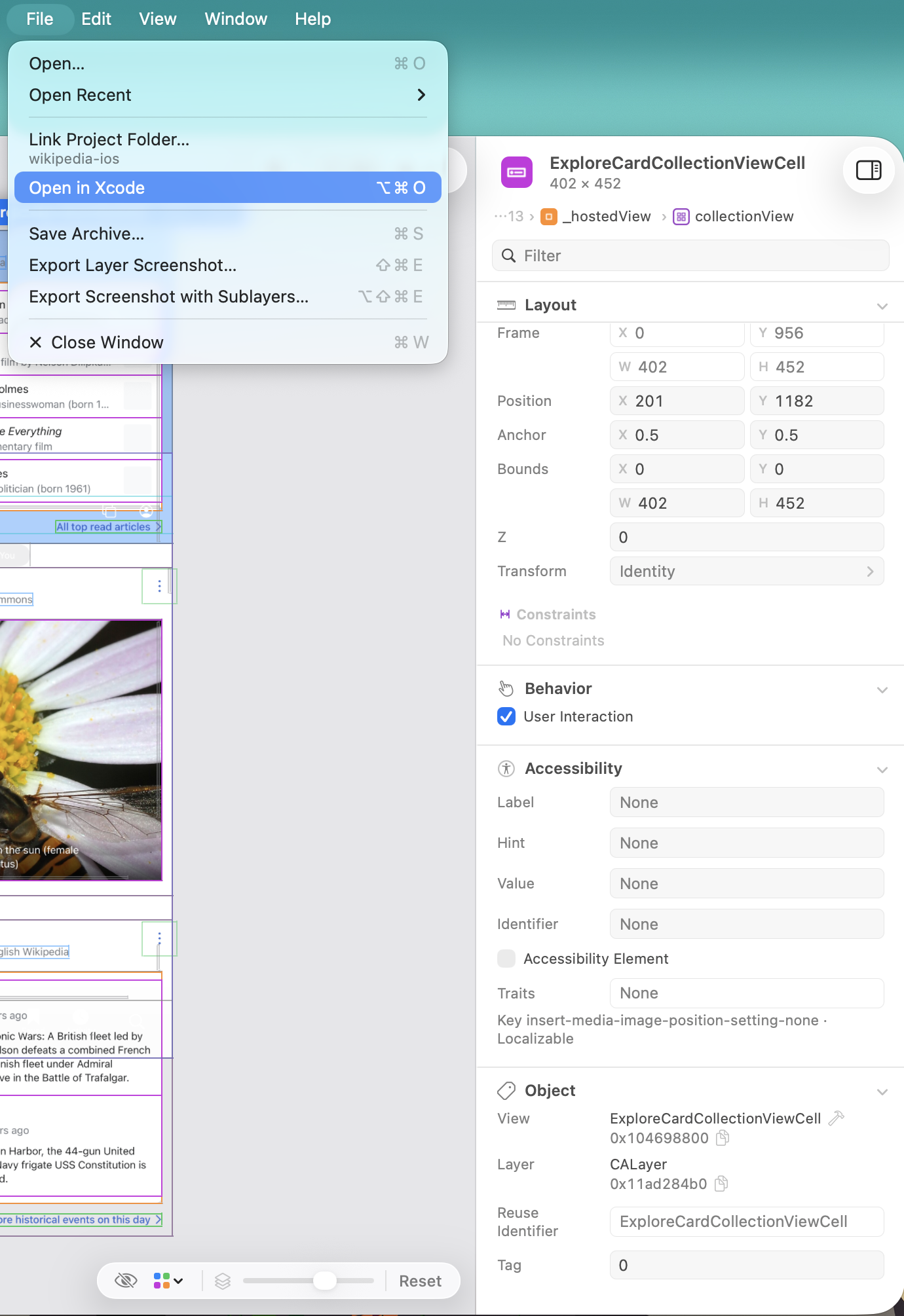
When your project declares the class of the selected layer, its view or its view controller:
- click the Open in Xcode button beside the class name in the Object section of the attributes, or
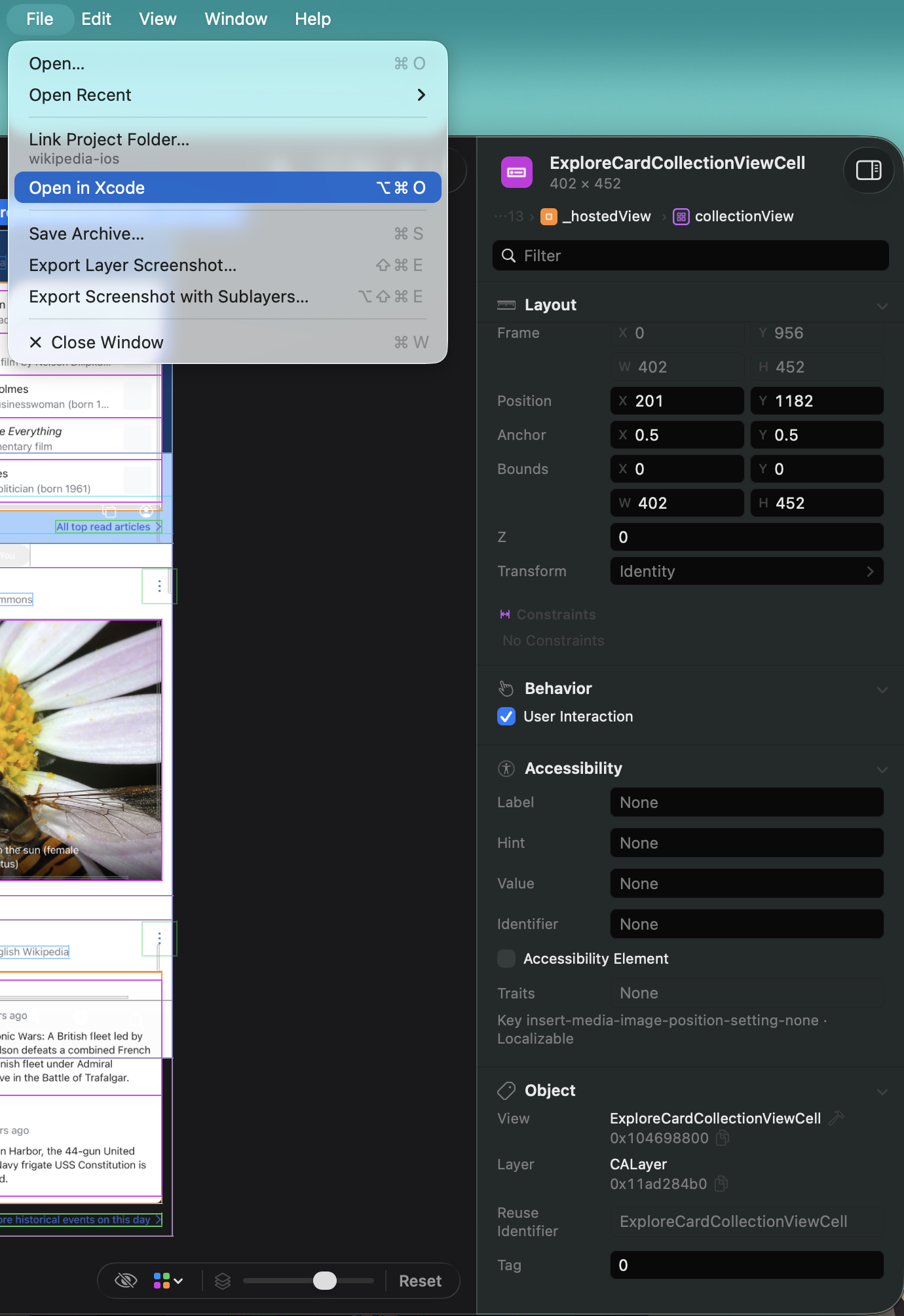
- choose File › Open in Xcode (⌥⌘O), or Open in Xcode in the context menu of the row or the layer.
Xcode opens the file at the declaration. When the class is declared in several places, choose one from the list of files and lines. Swift classes, structures, enumerations and actors are found, and Objective-C @interface and @implementation; extensions and categories are not declarations.
System classes have no Open in Xcode. Without Xcode installed, the file opens in its default app.
See where a color comes from
With a linked folder, a color that matches a color set in your asset catalogs is shown by the set’s name, and its tooltip says which appearance matched, for example “Asset: BrandBlue (Dark)”. A dynamic color counts as a match only when both its light and dark values match. See Attributes for how names are chosen.
See which key a text comes from
With a linked folder, a text that matches a value in your String Catalogs or .strings files, in any language, shows its key and table under it, for example “Key home.title · Localizable”. Texts made from a format such as %@ items match too. When several keys match, the first is shown and the tooltip lists the others.
Copy an LLDB command
To reach the selected object in the debugger, choose Edit › Copy LLDB Command, or Copy LLDB Command in the context menu of the row or the layer:
Print Object copies a command that prints the view, or the layer when there is no view:
textexpr -l objc -O -- (id)0x10a2b3c40Stop When the Frame Changes copies two breakpoints that stop when the layer’s position or bounds are set:
textbreakpoint set -n "-[CALayer setPosition:]" -c '(void *)$arg1 == (void *)0x600001234560' breakpoint set -n "-[CALayer setBounds:]" -c '(void *)$arg1 == (void *)0x600001234560'
Paste them in Xcode’s debug console while the app is paused. The addresses above are examples; Cutaway uses the selected object’s.
The commands need the object’s address, which apps with CutawayServer 1.1 or later send. In an archive they are still available, with the note that the addresses are from when the archive was saved: they only work in the same run of the app.