
开始使用
从下载到在 3D 中看到你的 App 的图层。你需要一台 macOS 14 或更新版本的 Mac,以及一个能在 Xcode 里构建的 iOS App。
约 10 分钟Cutaway 1.2.0 · CutawayServer 1.2
安装 Cutaway
下载磁盘映像,打开后把 Cutaway 拖到“应用程序”。
macOS 提示无法验证开发者?
Cutaway 的构建没有经过 Apple 公证。第一次打开时,打开系统设置 › 隐私与安全性,选择仍要打开;或者运行:
sh
xattr -dr com.apple.quarantine /Applications/Cutaway.app以后想知道有没有更新的版本,随时选择 Cutaway › 检查更新…。
把 CutawayServer 加进你的 App
CutawayServer 是一个小巧的 iOS SDK,在你的 App 里回答 Cutaway 的请求。用 Swift Package Manager 添加它:
text
File › Add Package Dependencies…,输入

  https://github.com/nothingsh/CutawayServer

然后把 CutawayServer 库加到你的 App target。
swift
dependencies: [
    .package(url: "https://github.com/nothingsh/CutawayServer", from: "1.2.0")
]
// …and add the product "CutawayServer" to your app target's dependencies.
然后在 App 启动时开启它一次:
swift
import CutawayServer

func application(
    _ application: UIApplication,
    didFinishLaunchingWithOptions launchOptions: [UIApplication.LaunchOptionsKey: Any]? = nil
) -> Bool {
    CutawayServer.start()
    return true
}
swift
import CutawayServer

@main
struct MyApp: App {
    init() {
        CutawayServer.start()
    }

    var body: some Scene {
        WindowGroup { ContentView() }
    }
}
start() 可以在任何线程调用,再次调用什么也不做。
只在 Debug 构建里
CutawayServer 只编译进定义了 DEBUG 的构建,在其他构建里是一个空函数。要构建名为 Staging 或 QA 的配置?见 Debug 与 Release 构建。
运行你的 App 并连接
在模拟器里运行 App,或在用线缆连接到 Mac 的 iPhone、iPad 上运行。打开 Cutaway:几秒钟内你的 App 就会出现在列表里。选中它。
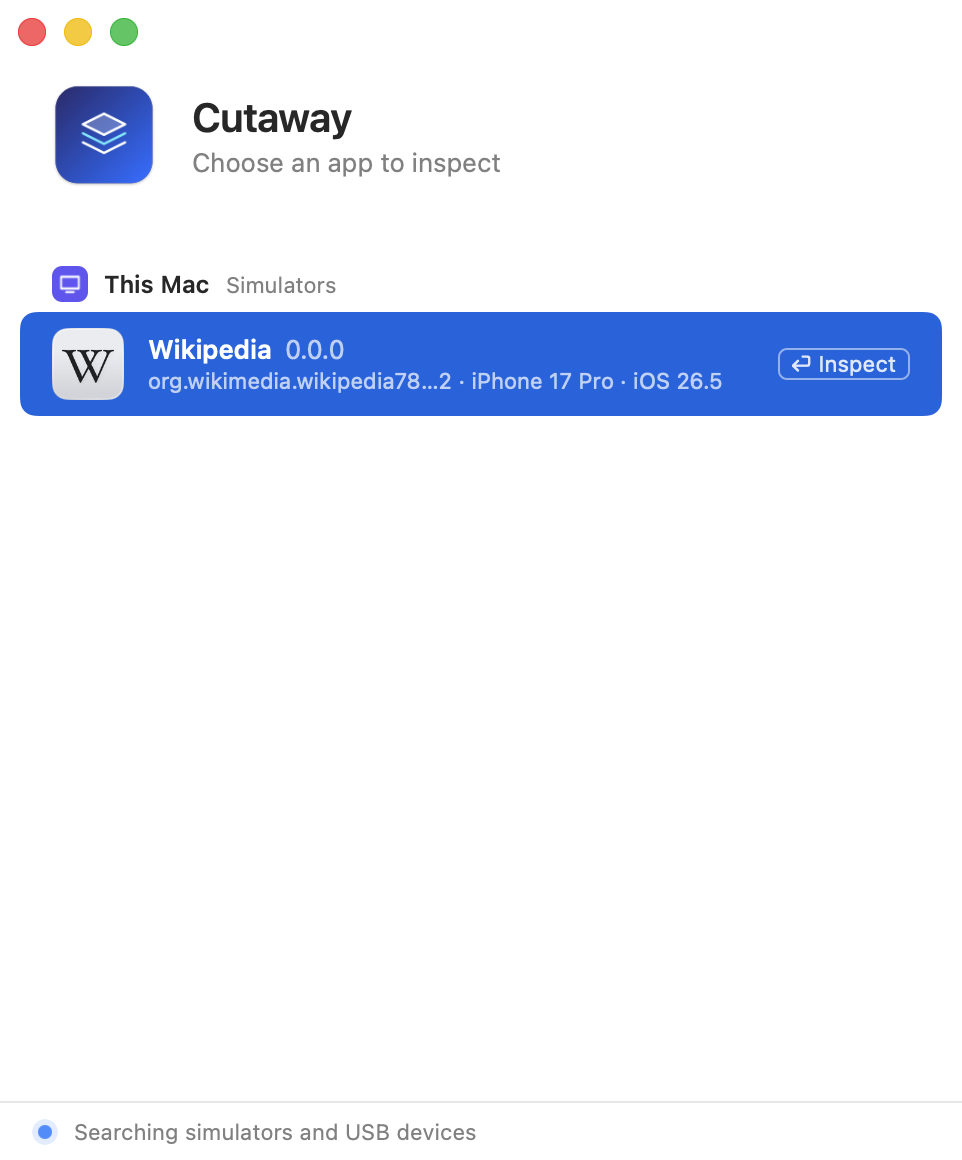
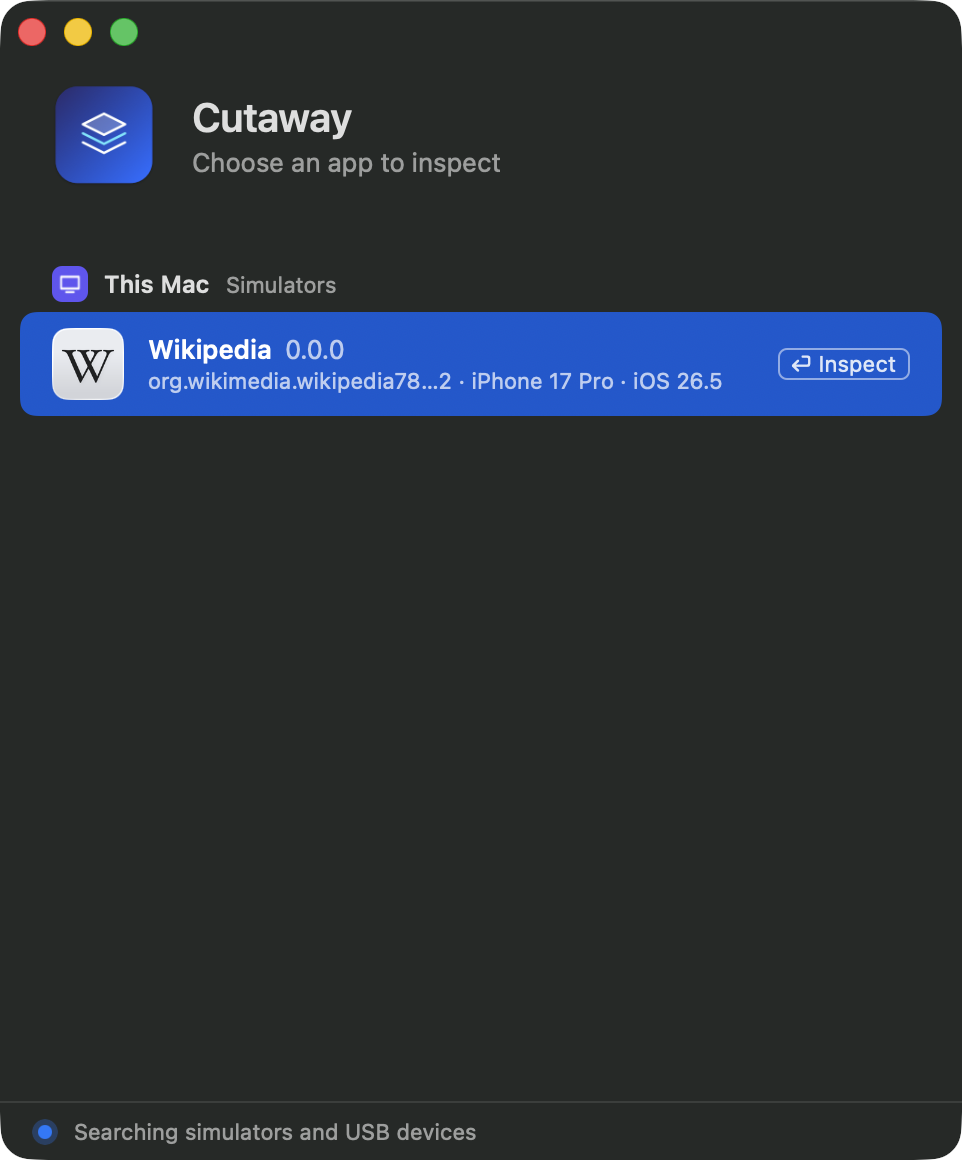
图层树先到,然后是每个图层的截图。预览一开始是 2D,拖动是平移:按 ⌘2 切换到 3D,再在预览里拖动就能转动图层。
列表里没有你的 App?
按顺序检查这几项:
- 构建里包含了服务端。 配置定义了
DEBUG,或者打开了包的ReleaseEnabledtrait。见 Debug 与 Release 构建。 - 服务端已经开启。
CutawayServer.start()在启动时运行,并且 App 在前台:App 变为活跃后服务端才开始监听。 - 在设备上: 设备用线缆连接、已解锁,并且信任这台 Mac。
- 列表里的 App 带着两个版本号: 一方对另一方来说太旧了。更新旧的那一方;见版本与兼容。
更多解答见常见问题与故障排除。